
How to reset a forgotten password
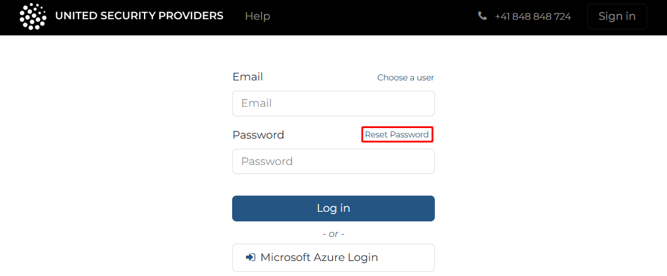
Click on 'Reset Password' on the login form:
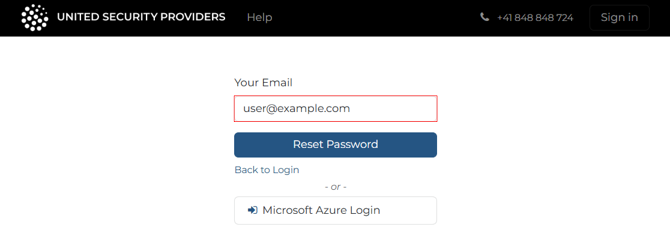
Enter your e-mail address used for logging into the USP Service Platform, then click on 'Reset Password':
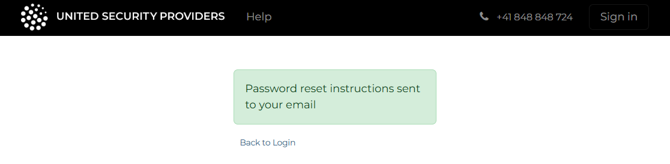
A message is displayed informing you that instructions have been sent to you via e-mail:
You'll receive an e-mail confirming that a password reset for your account was requested. Click on the button 'Change password'.
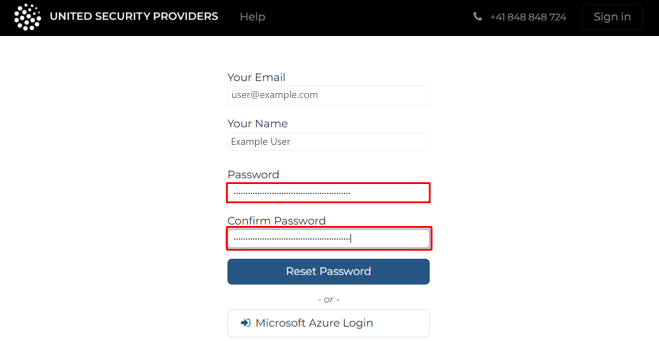
This will open a form in your browser where you can enter your new password. The fields 'Your Email' and 'Your Name' contain your login information and are read-only.
Enter new password and click on 'Reset Password':
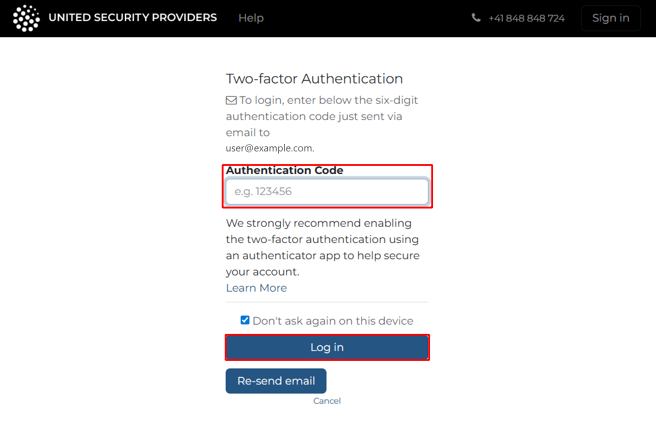
You will be prompted to enter a 2FA code. If you have not yet set up 2FA using an authenticator app as described in the article 📄 Enable 2FA using an authenticator app, a one-time 2FA code will be sent to you by e-mail.
Enter the 2FA code and press "Log in":
You are now logged in and have successfully reset your password.