
How to activate an account for the USP Service Platform
Refer to article 📄 Create customer account for instructions how to receive an invitation e-mail.
The invitation email confirms that your account has been created, displays the email address to be used for login and contains a button 'Activate Account'.
Clicking 'Activate Account' opens a registration form in your browser (see below). Complete the form by entering your name, email address, and password, then click 'Sign up':
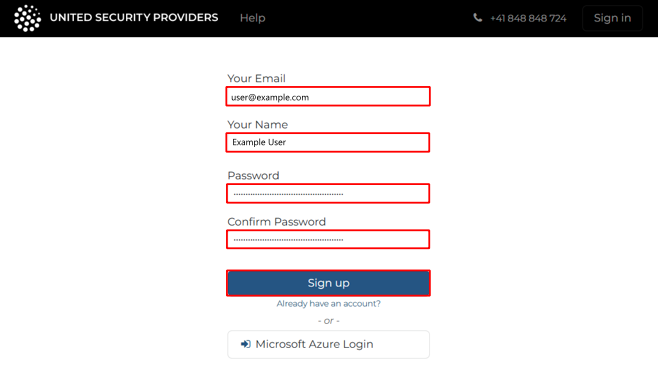
After clicking 'Sign up', you will receive two emails:
- A confirmation email that your account has been activated
- A second email containing a 2FA code
Enter the 2FA code in the form shown below and click 'Log in':
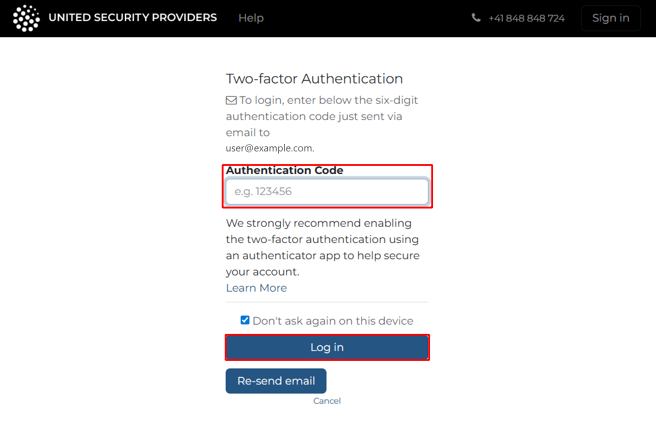
Enabling 'Don't ask again on this device' means you won't need to enter an emailed 2FA code when signing in from this browser for the next 3 months.
After this period, you'll need to enter a new 2FA code sent via email. We strongly recommend enabling the two-factor authentication using an authenticator app to help secure your account.
After this period, you'll need to enter a new 2FA code sent via email. We strongly recommend enabling the two-factor authentication using an authenticator app to help secure your account.
For setup instructions, see the article 📄 Enable 2FA using an authenticator app after signing in.